 Download
My child's iPad or iPhone isn't showing in Screen Time
Use this page if your child is missing from your Family Sharing group, their device doesn't appear, or their Screen Time is blank, greyed out or says it has not been available for 7 days.
A child's Screen Time and parental controls are managed from your iPhone: Settings, then Family, then your child's name. If you don't see Family, tap your name at the top first. Settings, then Screen Time, shows your own.
What to check
Check if any of the situations described below match what you can see. If so, pick the one that matches, and follow its steps.
- If your child isn't listed in Settings, then Family:
Your child isn't in your Family Sharing group - If your child is listed as an adult in Settings, then Family, or their birthday makes them 18 or older:
My child's Apple Account shows as an adult - If you can't manage your child's iPad or iPhone, and the top of Settings on it shows your name, another adult's, or "Apple Account" with a prompt to sign in:
Their iPad or iPhone isn't signed in to their own account - If your child is listed, but their Screen Time is blank, greyed out, or says it has not been available for 7 days:
Their Screen Time is blank, greyed out or "has not been available for 7 days"
AYour child isn't in your Family Sharing group
Fix: Get your child into your Family Sharing group.
You can manage a child from Settings, then Family, only if you're the Family Sharing organiser or a parent or guardian in the group.
-
On your iPhone
If your child has an Apple Account but hasn't joined, add your child's existing Apple Account to your family. If an invitation is waiting, tap Family, then tap their name to see whether it has been accepted, and tap Resend Invitation to send it again. -
On your iPhone
If your child doesn't have an account, create a child Apple Account. -
On your iPhone
A person can only be in one Family Sharing group at a time, so a child in someone else's group won't show in yours. See my child's invite isn't showing up to check, and move your child to your group to move them.
BTheir iPad or iPhone isn't signed in to their own account
Fix: Sign it in to your child's own account, and connect it to your Family Sharing group.
Each child needs their own Apple Account, not one shared with anyone else, signed in on their device.
-
On your child's iPad or iPhone
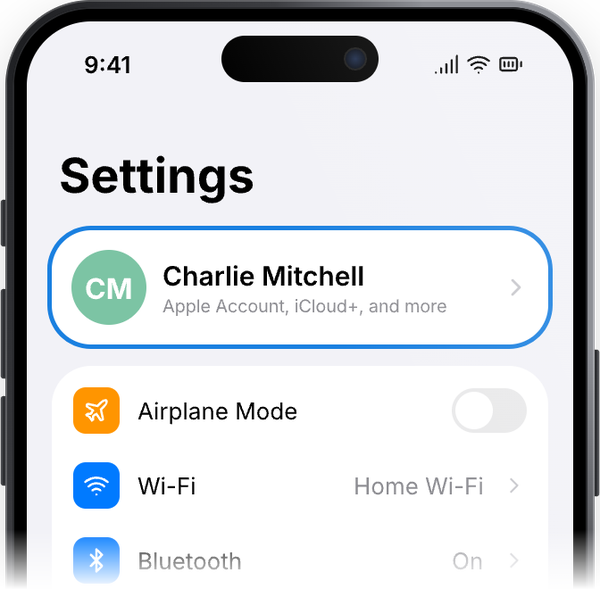
Match the top of Settings to one of these three.Your child's name means the right account is signed in. Go to step 2:
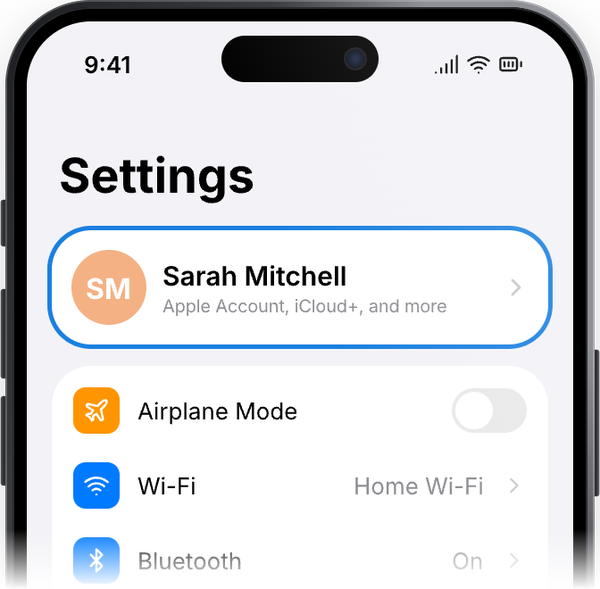
Your name, or another adult's, means a parent's account is signed in. See my child's phone is signed in with my parent Apple Account:
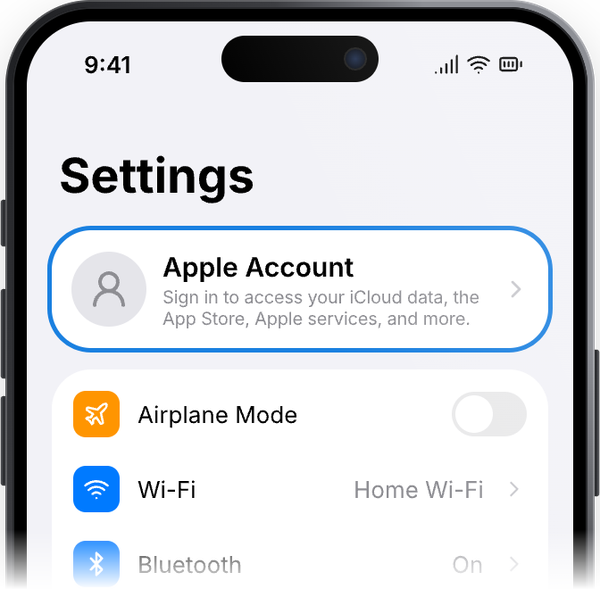
"Apple Account" means nobody is signed in. Sign your child in:
-
On your child's iPad or iPhone
If you set the device up recently and chose an age range for your child, connect it to your Family Sharing group. Until you do, the device only has age-appropriate defaults and you can't manage it fully. In Settings on that device, tap Connect to Family and follow the instructions. Your child needs a Child Account for this. Apple's steps for connecting a device
CTheir Screen Time is blank, greyed out or "has not been available for 7 days"
Fix: Follow these steps, which do fix the issue in some cases. If the report is still blank after them, contact Apple Support.
-
On your iPhone and your child's iPad or iPhone
Update every device in your Family Sharing group to the latest software, so that Screen Time settings sync between them. Open Settings, tap General, then Software Update. -
On your iPhone
After each change, open Settings, tap Family, then tap your child's name to see whether the report is back. No time is given for a change to appear, so check again after each step. -
On your iPhone
Don't remove your child from the family to try to fix this. For a child aged 13 to 17, Screen Time has to be turned off first. For a child under 13, the account has to be deleted or moved to another group. Apple's rules on leaving or removing a member
 The Safer Screentime app checks the screentime setup on your phone (parent or child) and guides you through the steps to fix any issues.