 Download
My child's phone is signed in with my parent Apple Account
Use this page if your child's iPhone or iPad is signed in with a parent's Apple Account.
How to tell
On your child's iPhone or iPad, open Settings and look at the top of the list. If it shows your name, or another adult's, a parent's Apple Account is signed in on the device. That's the problem: Screen Time can only manage a device signed in to a child Apple Account in your Family Sharing group.
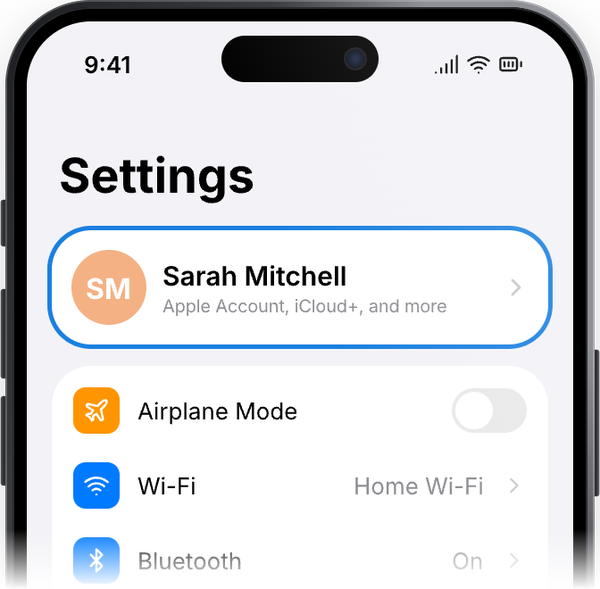
The fix
-
On your iPhone
Open Settings, tap Family, and check your child is listed. If they aren't, create a child Apple Account first, or add their existing one. -
On your child's iPhone or iPad
Check anything that matters is backed up to iCloud. Signing out can remove data that hasn't synced. -
On your child's iPhone or iPad
Open Settings, tap the name at the top, then tap Sign Out. Choose Sign Out But Don't Erase, so most of the data stays on the device. Anything that hasn't synced to iCloud may still be removed, which is why step 2 comes first. -
On your child's iPhone or iPad
Sign in with your child's own Apple Account: sign your child's device in to their Apple Account. -
On your child's iPhone or iPad
Go back to the app that asked for Screen Time and try again.
Signing out with Sign Out But Don't Erase keeps most of the data on the device, and anything not yet synced to iCloud may be removed. The detail is in signing out of your Apple Account.
If Screen Time still won't turn on, go back to Screen Time won't turn on for my child's iPhone.
 The Safer Screentime app checks the screentime setup on your phone (parent or child) and guides you through the steps to fix any issues.