 Download
Screen Time won't turn on for my child's iPhone
Use this page if you see a message that Screen Time couldn't be turned on, or that it needs a child account.
If an app says it couldn't turn on Screen Time, or that Screen Time only works with a child account, the account on your child's iPhone or iPad is almost always the reason. An app can only use Screen Time on a device signed in to a child Apple Account that's in a Family Sharing group, so that a parent in the group can approve it. Neither the app nor you can switch that rule off.
Check your child's device
On your child's iPhone or iPad, open Settings and look at the very top of the list. It shows one of three things. Follow the instructions in A, B or C below.
A"Apple Account", asking you to sign in
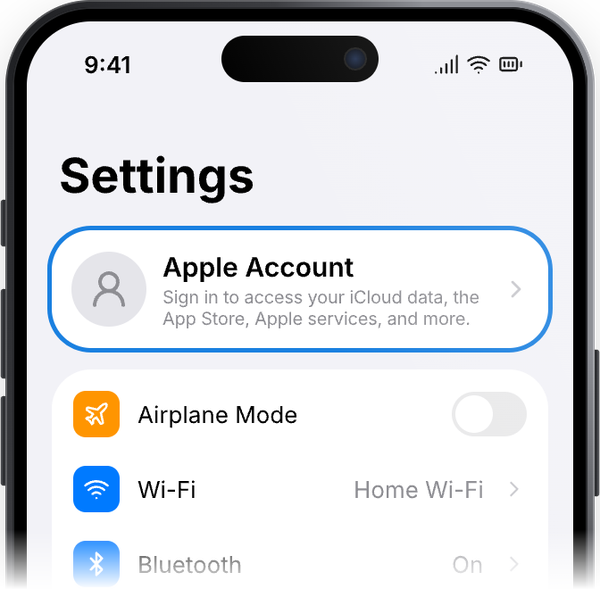
No Apple Account is signed in.
BYour name, or another adult's
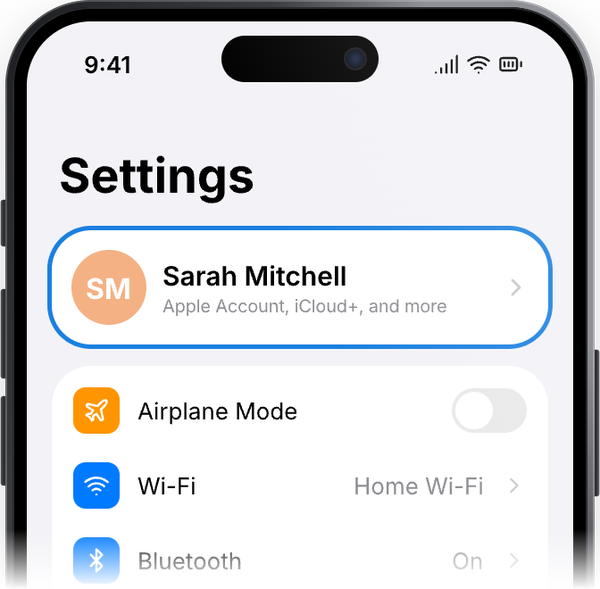
A parent's Apple Account is signed in on the device. Follow my child's phone is signed in with my parent Apple Account.
CYour child's name
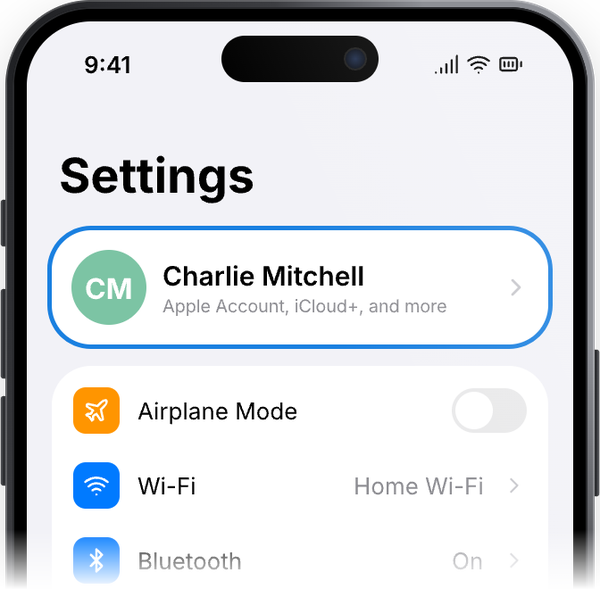
Your child's own account is signed in. Now check your own iPhone: open Settings, tap Family, and look for your child.
- If your child isn't listed:
Add your child's existing Apple Account to your family. - If your child is listed:
Check how they're listed. If Family shows them as an adult, or their birthday makes them 18 or older, see my child's Apple Account shows as an adult.
Then try again
Once the account is fixed, open the app that asked for Screen Time on your child's device and try again.
Signed in correctly, listed as a child, and it still fails
The account isn't always the cause. Two other things stop an app turning on Screen Time.
Another app already manages Screen Time
Only one app can manage Screen Time on a device.
-
On your child's iPhone or iPad
Open Settings, then tap Screen Time. -
On your child's iPhone or iPad
Tap Apps With Screen Time Access. The list shows which app currently has Screen Time access. -
On your child's iPhone or iPad
Delete that app: touch and hold its icon on the Home Screen, then tap Remove App and Delete App.
A passcode is needed
Apple requires a passcode before Screen Time can be added.
-
On your child's iPhone or iPad
Open Settings. -
On your child's iPhone or iPad
Tap Face ID & Passcode (Touch ID & Passcode on older phones). -
On your child's iPhone or iPad
Tap Turn Passcode On and choose a passcode.
Then open the app that asked for Screen Time on your child's device and try again.
The whole path in order: set up your child's Apple Account so you can use Screen Time.
 The Safer Screentime app checks the screentime setup on your phone (parent or child) and guides you through the steps to fix any issues.